> ## Documentation Index
> Fetch the complete documentation index at: https://docs.openfuturecoalition.org/llms.txt
> Use this file to discover all available pages before exploring further.
# Tasks
> Collaborate on Projects and Complete Tasks
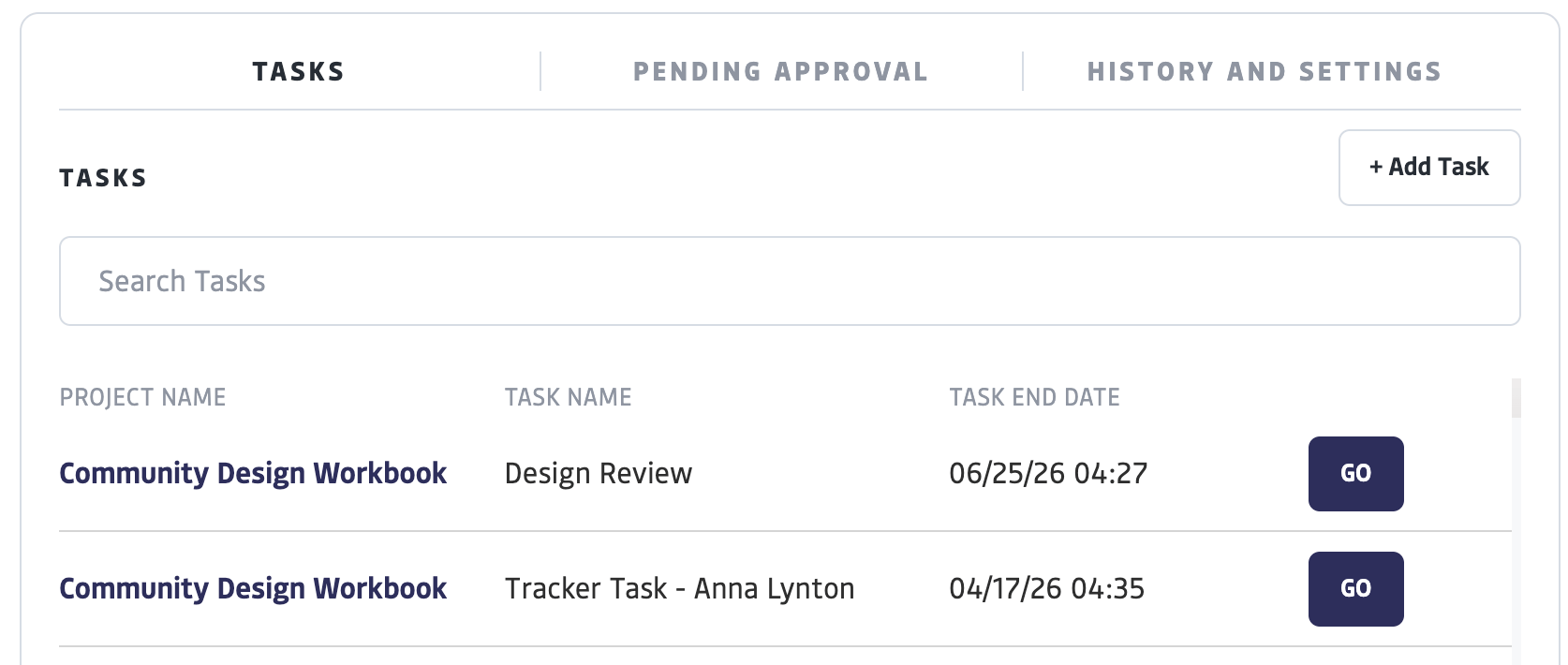 Tasks serve as a tool for collaborating on time-bound, measurable initiatives. As a member, you will interact with tasks through your personal profile and projects. Members can be assigned tasks by the managers of the projects they are a part of.
## Receiving Task Assignments
When a task is assigned to you, you will receive both:
* **Email Notifications:** You will receive an automated email from [donotreply@openfuturecoalition.org](mailto:donotreply@openfuturecoalition.org) informing you of the new assignment.
* **Platform Notifications:** A notification will appear under the bell icon in the upper right corner of your personal profile.
## Viewing Your Tasks
Once assigned, you can access and view your tasks in two main areas:
* **Personal Feed:** All tasks assigned to you will appear in the Feed of your profile
* **Project Feed:** Within a specific project's Feed of which you are a member, you will see your tasks associated with that project
* **Calendar:** Any task with a set start and end date will automatically appear on your personal profile calendar and the project’s shared calendar.
## Completing a Task
To work on and finalize an assigned task:
From your Feed's task list, select "Go" to open the full task details.
You can record several types of data depending on the task requirements:
* Time Tracking: Note the time contributed to the task. You can add multiple rows.
* Reporting Data: For "Measurable Result" tasks, enter specific quantities, dates, and descriptions related to project goals.
* Select "Save" to keep your progress and return to the task later.
* Select "Mark Complete" once you have finished the work.
Approval Process: Once marked complete, the task is automatically sent to the Project Managers or the Organization for review and final approval.
# FAQ
Tasks serve as a tool for collaborating on time-bound, measurable initiatives. As a member, you will interact with tasks through your personal profile and projects. Members can be assigned tasks by the managers of the projects they are a part of.
## Receiving Task Assignments
When a task is assigned to you, you will receive both:
* **Email Notifications:** You will receive an automated email from [donotreply@openfuturecoalition.org](mailto:donotreply@openfuturecoalition.org) informing you of the new assignment.
* **Platform Notifications:** A notification will appear under the bell icon in the upper right corner of your personal profile.
## Viewing Your Tasks
Once assigned, you can access and view your tasks in two main areas:
* **Personal Feed:** All tasks assigned to you will appear in the Feed of your profile
* **Project Feed:** Within a specific project's Feed of which you are a member, you will see your tasks associated with that project
* **Calendar:** Any task with a set start and end date will automatically appear on your personal profile calendar and the project’s shared calendar.
## Completing a Task
To work on and finalize an assigned task:
From your Feed's task list, select "Go" to open the full task details.
You can record several types of data depending on the task requirements:
* Time Tracking: Note the time contributed to the task. You can add multiple rows.
* Reporting Data: For "Measurable Result" tasks, enter specific quantities, dates, and descriptions related to project goals.
* Select "Save" to keep your progress and return to the task later.
* Select "Mark Complete" once you have finished the work.
Approval Process: Once marked complete, the task is automatically sent to the Project Managers or the Organization for review and final approval.
# FAQ