
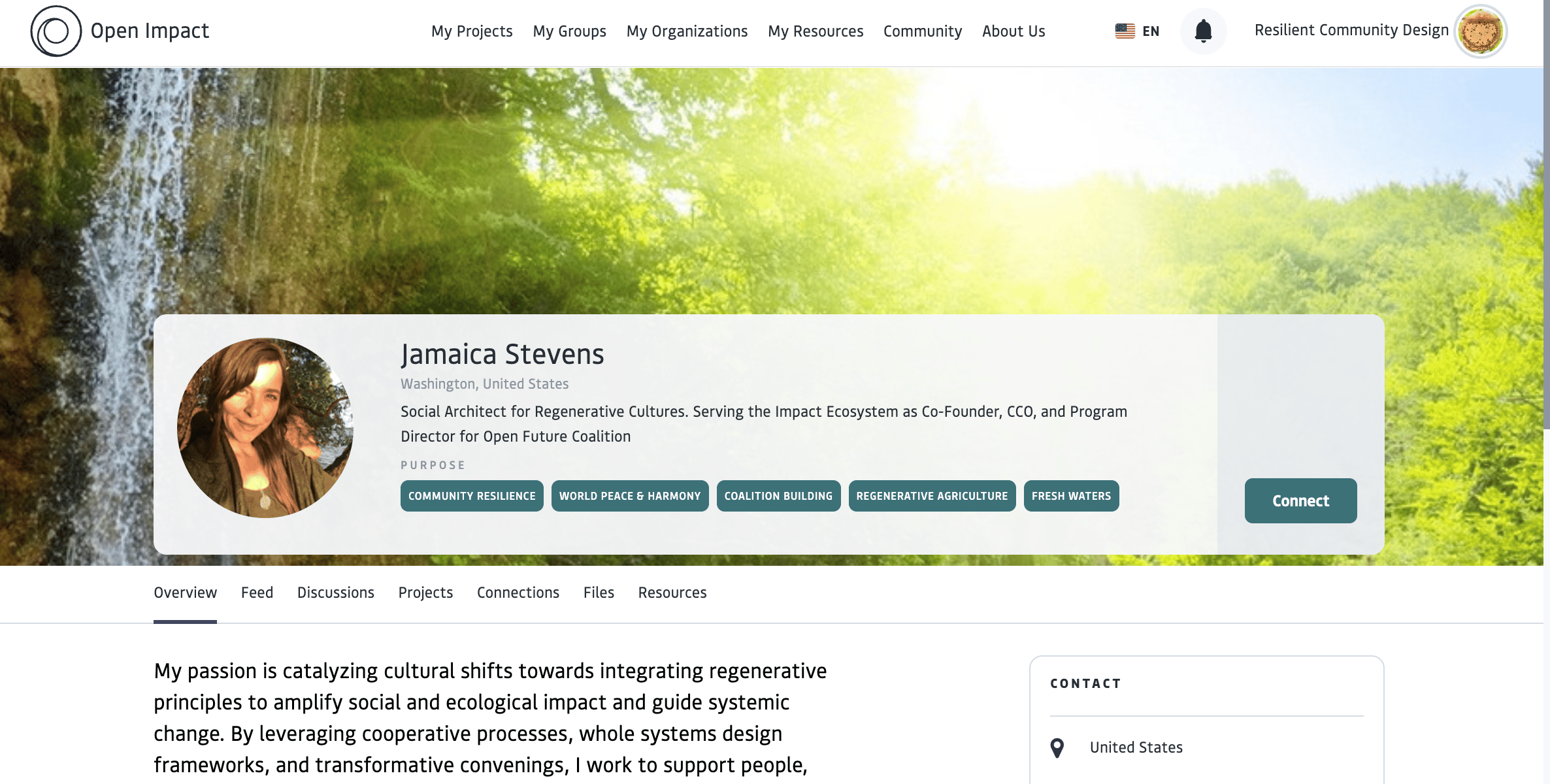
We are honored to have you join us as an early part of our community, creating the foundational culture of the Open Impact ecosystem while testing and refining the platform, as we grow together towards our public launch. As we release new versions of the platform, you will have access to increased features along with opportunities to join programming to support greater networking and resourcing within the community.
Profile Set Up
Your profile is your identity on the platform. This guide walks you through setting up your profile so you can connect, collaborate, and get the most out of your experience.1
Join the Platform using an invite link
Set up your personal account by signing up through a customized invite link sent to you by an Organization. When you use the invitation link, you will see a button in the upper right to ‘Sign Up’. Once you’ve created your account you will automatically be signed in.
2
Click the icon next to your name in the top right corner
In the drop-down menu, select “settings”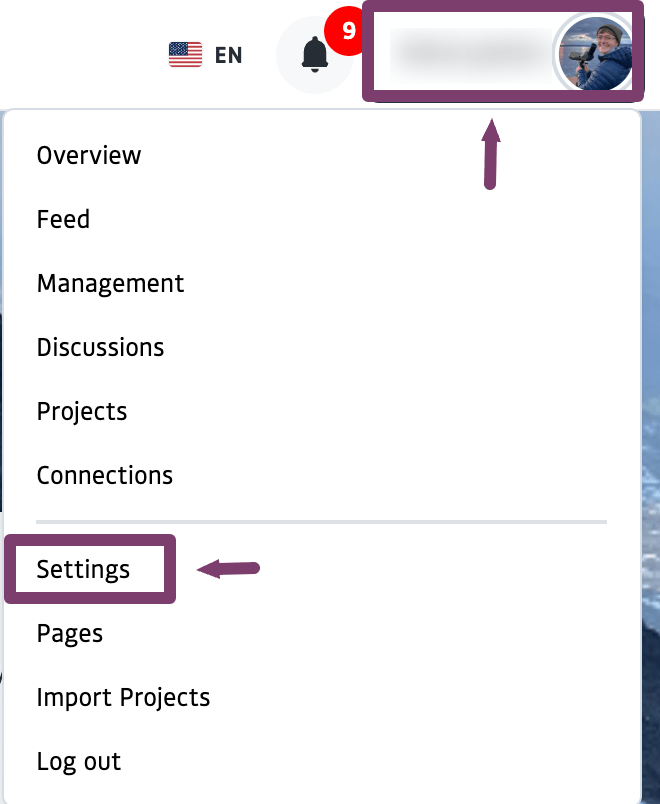
3
Follow the steps to update your profile
- Basic Info: This is the basic information other users will see on your profile
- Profile Configurations: Upload a profile and banner image. Use the tagline and description to display short content in your banner, while the longer user description appears in your profile overview. You can also tag your profile with skill, knowledge, or purpose categories to be searchable in the Community.
- Public contact information: This location information will be displayed on your profile. If you use the “Get from Address” or “Use Map” to enter the latitude and longitude fields, your profile will appear as a pin in the map view of the community directory. Country is the only required field.
- Security: This tab allows you to change your security question and password.
- Address and settings: Change your language preferences, private address and time zone.
4
Click Update when you are done to save your changes
Your Profile
On your personal profile you will see “Feed”, “Discussion”, “Connections”, “Resources”, and other platform elements. These are the aggregates of activities and communications from the various Groups or Projects that you belong to, so you can view all the activities connected to your Groups and Project in one place.
Overview
View your public profile information (See ‘Update personal profile’ to edit this information)Feed
- Make comments on posts from your groups or projects
- View tasks that have been assigned from projects you are participating in
- View a calendar of events from projects or groups you are a part of
- Add and check off personal to-do list items
- Learn more about Feeds
Management
- Manage projects and tasks across different projects from one place
- Learn more about Project Management
Discussions
- Create a personal discussion thread between yourself and your connections.
- Search for and view a topical discussion and add comments
- Learn more about Discussions
Projects
- View and filter the projects and groups you are a part of
- Learn more about Projects and Groups
Connections
- View and filter the People and organizations you are connected with
- Learn how to connect with other members