About
The ‘Management” element within Project spaces contains the operational project management tools unique to Project spaces. As a manager of a project, you can create, assign, and review tasks and use visual management tools.Create and Assign Tasks
1
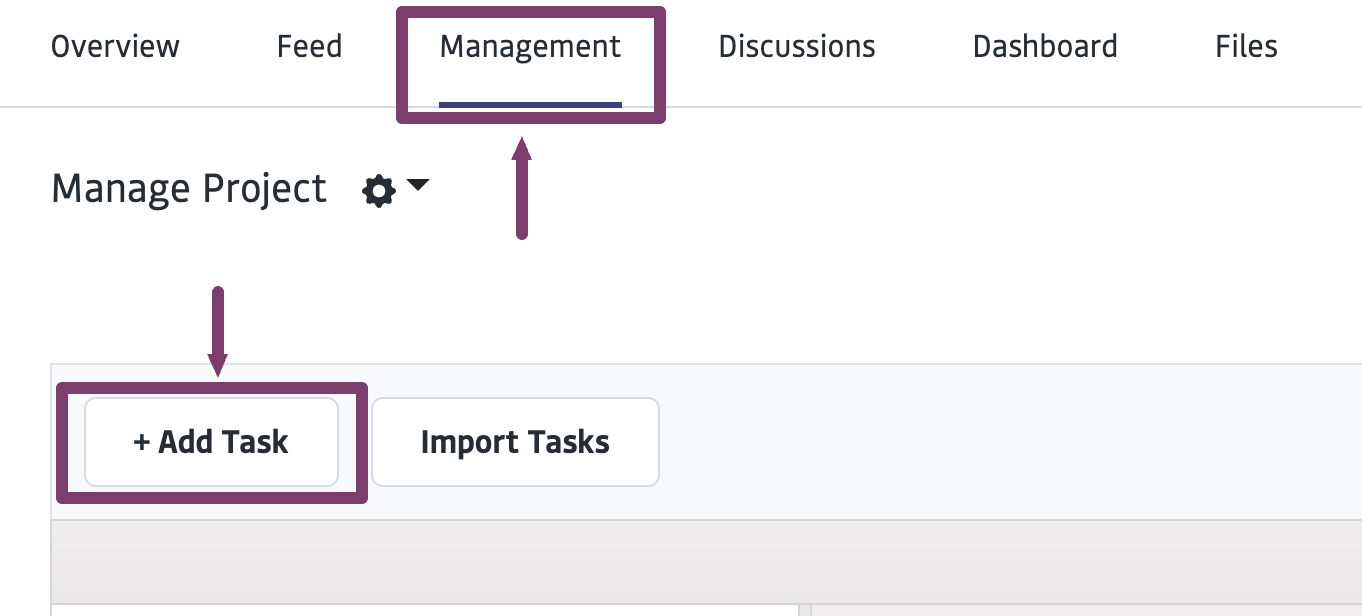
Go to "Management" within the Project and click "Add Task"
2
Select the appropriate template collection to find the task, such as “General Task Library”
3
Select the appropriate task template, such as “General Task”
4
Enter task name, description, and other fields as prompted and click “Submit”
5
Add more information about the task on the following screen
- Select Manager: This selects the organization that is governing the task
- Select Collaborators Group: You will choose which Group of collaborators to select from in order to populate the “Assignee” field. Your Organization will have set up various Groups - whether for internal coordination, or to coordinate with your collaborators. You can select the appropriate group (who is sponsoring the project) and where you have the appropriate team or community members organized in order to assign them tasks. (Note- if you do not have the appropriate group set up with the collaborators added in order to assign tasks, please write to [email protected] and we can help)
- Add additional information about your tasks, including assignees, priority level, start and end date, and attachments.
6
Once you are done, click “Submit”
The task will now be listed on the Project’s “Management” tab. Refresh the page if you don’t see it. You can click to open it and view it.
Single vs Bulk TasksSingle Assign (Default): One task card is assigned to one or multiple people. If anyone hits “submit,” the task is considered complete for everyone. Bulk Assign: This clones the task into individual copies for every selected person. Each assignee works on and completes their own version independently (ideal for classroom settings, where each assignee must complete their own task).
Import Tasks
Bulk import and edit tasks you have already created1
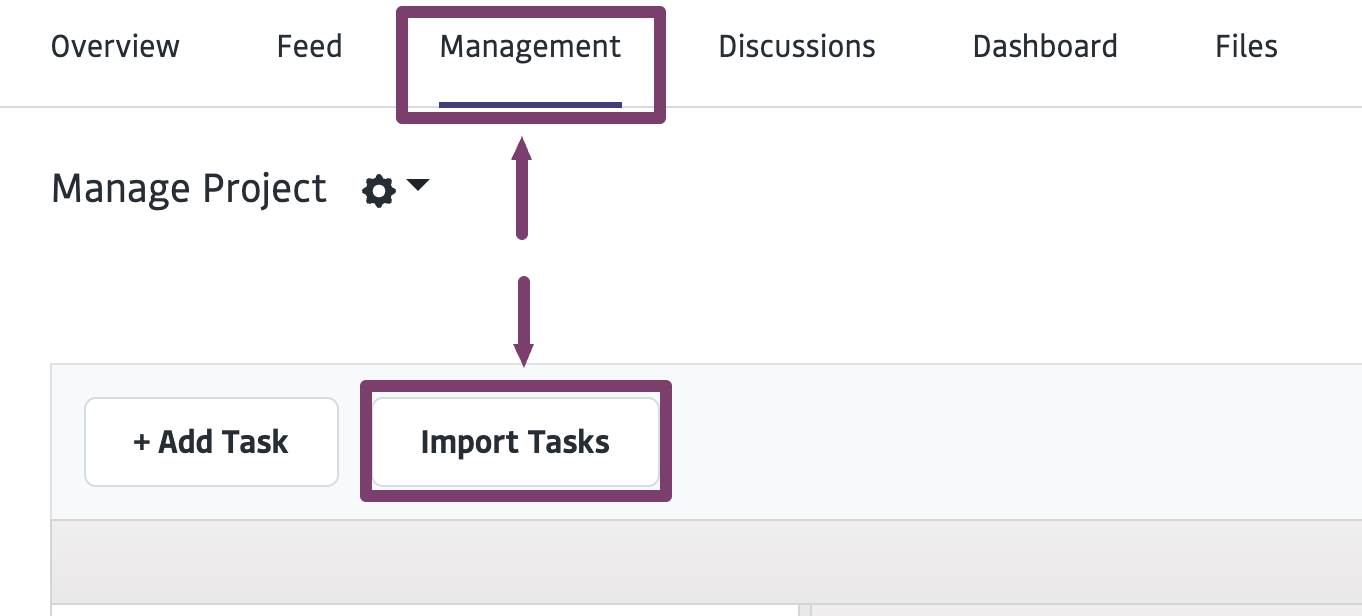
Select “Import Tasks”
2
Input and Edit Tasks
Either copy and paste tasks from an existing spreadsheet organized with the same headers ( Task Name, Description, Start Date, End Date) into line 2 of the spreadsheet in the platform or manually enter data into the fields in column 2.
3
Click ”Create Tasks”
4
To Further Edit
To further edit and assign each task to collaborators, click on the task in the list column, Gantt chart, or swimlane view. Edit the fields and click submit once you are done. 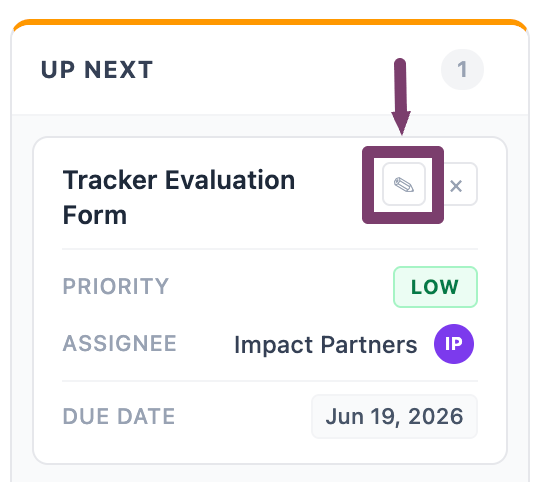
Visual Management Tools
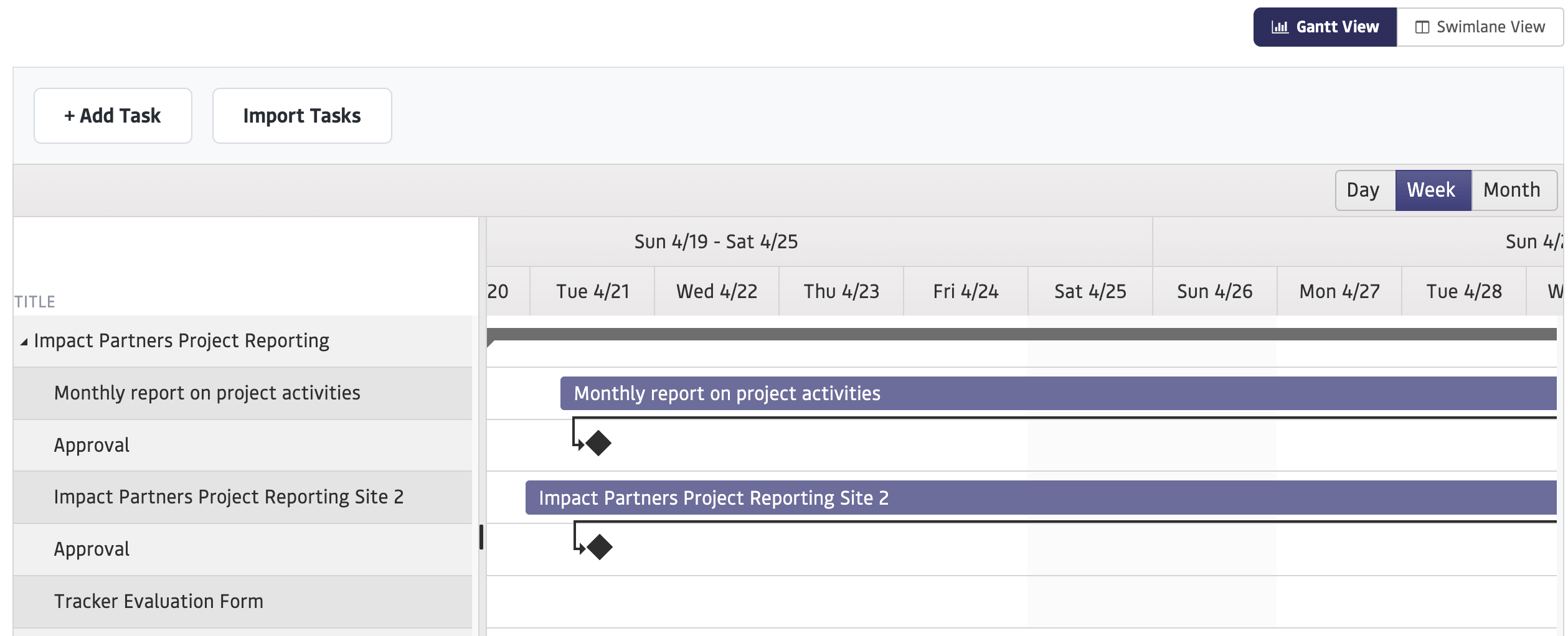
The Gantt Chart and Swimlanes are both tools to visualize and manage tasks. Once tasks are added, they will be auto-populated to these views. Click on a task within either view to view task details or make edits.Swimlanes
Visualizes task cards in two vertical columns based on status. You can quickly change a task’s status by dragging and dropping it from one column into another. The default swimlane statuses are selected and managed under project settings.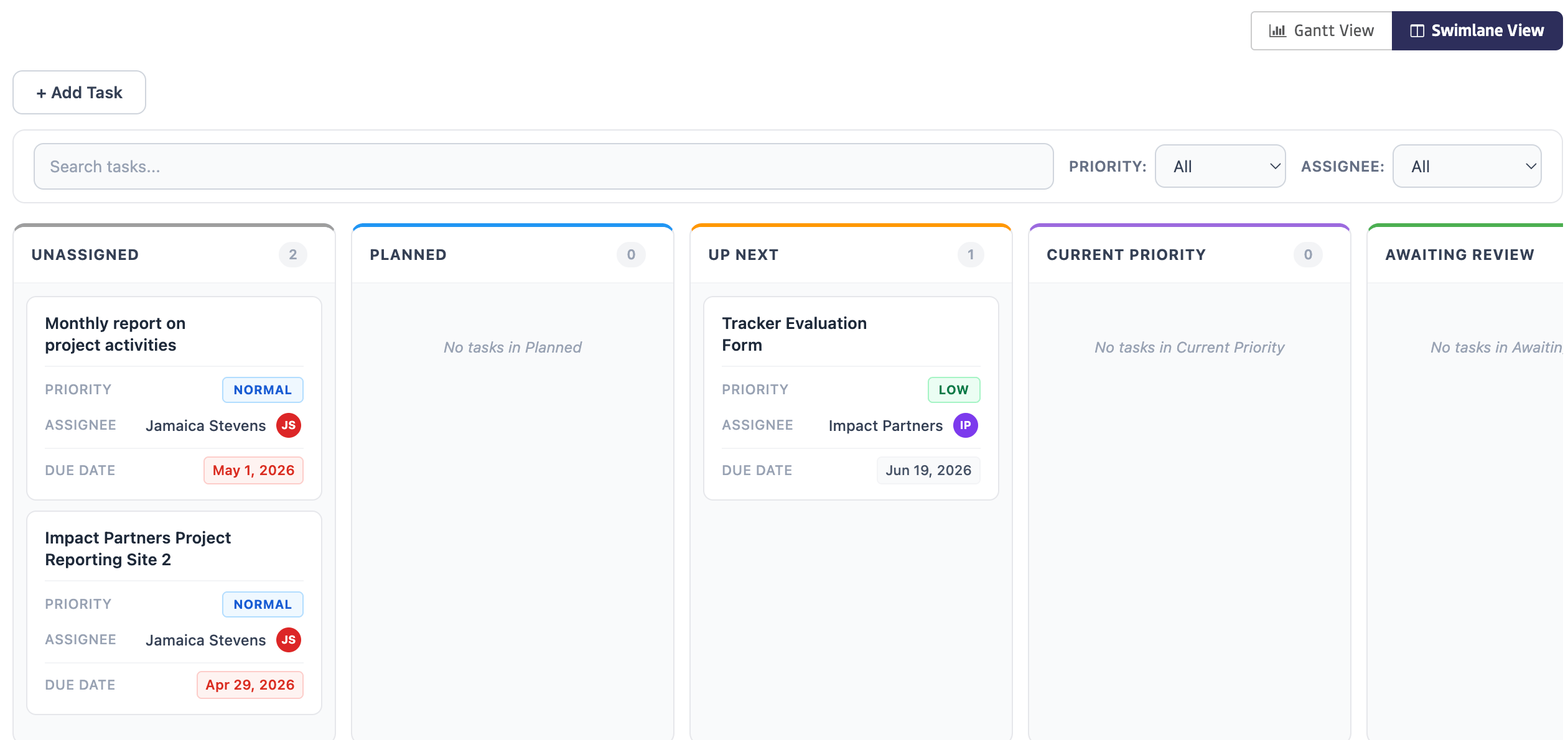
Gantt Chart
Ideal for visualizing the sequence and duration of tasks. Users can view their work by day, week, or month. You can quickly click and drag task bars to update start and end dates.