
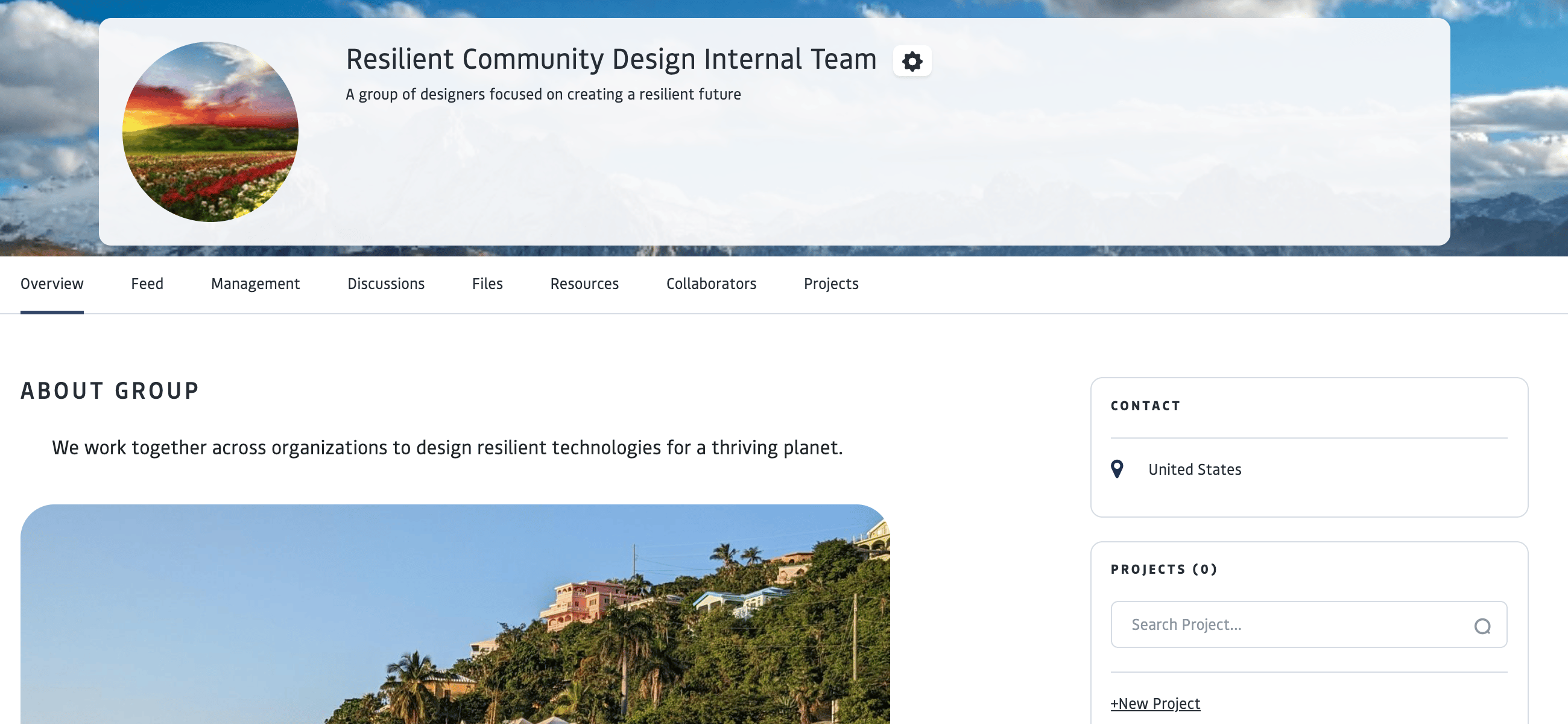
About
Groups on the Open Impact Platform serve as organized collaboration spaces that bring people together around a shared purpose or context. Designed to support both coordination and knowledge exchange, Groups create a structured environment where members can communicate, collaborate, and access shared resources. Groups are best for efforts that aren’t going to be time bound, task focused, and measurable. Groups may have one or more Projects that they sponsor. We suggest starting with an initial aggregate Group to create gravity of participation as you build your network engagement and then create additional Groups or Projects as they are needed. Each Group space includes:- Shared feed for timely updates and announcements
- Shared discussion spaces that allow for topic-based dialogue. These discussion threads are searchable and taggable, making it easy for members to revisit conversations and build on shared learning over time
- Shared calendar for scheduling meetings, managing events, and enabling RSVP and registration, helping participants stay aligned and informed
- Group resource library where curated templates, tools, documents, and media can be stored and accessed within the context of the group’s work
- Members can view and engage other collaborators, strengthening relationship-building alongside task coordination.
How groups relate to other platform areas
From a structural standpoint, organizations can create multiple Groups tailored to different needs—internal team spaces, external community forums, program-based cohorts, or regional collaborations. Groups may be private and invitation-only or externally visible and searchable, depending on the intended purpose.
In this way, Groups function as the connective infrastructure between people, projects, and networks—enabling coordination, shared learning, resource visibility, and structured collaboration across levels of scale.
Quick Start
How to set up a group1
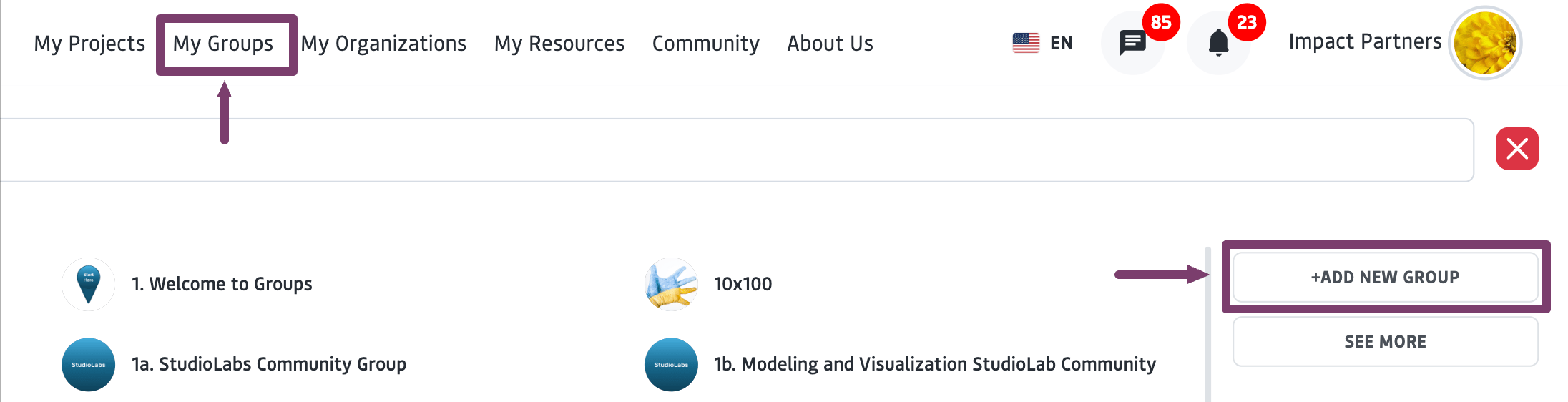
Navigate to "My Groups" and select "Create Group".
2
Follow the set up prompts to add details about your group
- About: You can create private, internal team groups by selecting “no” in the “show in community” setting- these groups will be invitation only and not visible to the public on the Community page. If you want a Group to be visible and searchable in the Community, select “yes”.
- Addresses: This is the group’s address. The Country field is the only required field. The contact information entered here will appear on the Overview page. If you would like the location of your project to show up on the public map- you can select “use map” to find your location and drop and save a pin. Or you can select “get from address” and the system will generate a latitude/longitude coordinate that will ensure your project shows up on the map view.
- Objective: This information will be shown in the Group Overview.
- Members: Add your collaborators to the Group. If you have not yet invited collaborators, please let the OFC team know and we can support you with an invitation code to invite collaborators to your group space.
3
Click "Create" to finish creating your group - the group will now appear in your menu bar under “My Groups”
Once a Group is Created
- To find your Group again, click on My Groups in the top menu and select your group
- To edit your group profile and settings, click the gear icon next to the group Title to open up the edit screen.
Group Elements
Feed
The Feed is a dynamic space that displays a running set of posts, calendar events, and attachments associated with a specific area of the platform. It exists across projects, groups, and individual or organizational profiles. It serves as the primary hub for real-time coordination and communication. It allows users to stay updated on recent activities, track upcoming deadlines via the calendar, and manage active tasks without navigating to deeper project management layers A group’s “Feed”:- Shows posts, calendar events, and attachments associated with the specific project or group.
- Allows you to create a post to share with other members of the group or project or comment on posts from other members. Posts can include images and links.
Discussion
Discussions are a dedicated space within Projects and Groups for creating and interacting with searchable, taggable topic threads. Discussions provide a long-term repository for ongoing dialogue, knowledge organization, and maintaining continuity as projects evolve. To Create a discussion in a project or group The creator or a manager of a project or group can add new discussion threads. Ensure you have the correct permissions.1
Navigate to the project or group and select the ‘Discussion’ tab
2
Click the ‘Add new’ button and fill in the fields
Add tags for the thread to be searchable by purpose, skills and knowledge. Consider what tags will make this thread most discoverable for other members.
3
Click ‘Create’ when you are finished to post the discussion
When you create the Discussion, Discussion participants will receive an email notification and platform notification when a new discussion topic is created.
- The creator of a group or project as well as managers are able to:
- Post new discussion threads and edit the discussions they create
- Moderate threads (including deleting comments)
- The creator of a group or project is also able to delete threads in the group or project they created, regardless of who created it.
Files
The Files element serves as a central repository for all documents, images, and media uploaded to or shared within a specific area of the platform, such as a project, group, or profile. Files appear here after being attached to other objects, such as tasks, feed posts, or discussion threads. This allows users to see what has been shared across a collective space, ensuring that everyone with the proper permissions has access to the necessary documentation- Attaching Files: You can attach files to other objects, such as tasks, feed posts, or discussion threads. Within these objects, you can upload a new file or select from existing. Attaching Files: You can attach files to other objects, such as tasks, feed posts, or discussion threads. Within these objects, you can upload a new file or select from existing. Attaching Files: You can attach files to other objects, such as tasks, feed posts, or discussion threads. Within these objects, you can upload a new file or select from existing.
- To Upload a New File: You can upload a new file directly for later use through the Files of your own profile. Navigate to your individual profile, click on the File tab, and select the “Add” button to upload a new file. _Note: The Files in shared spaces, such as projects and groups are view only and show the files that have been uploaded for that space via objects like discussions and feed posts. _
- Managing Files: Next to the file name and type, select the gear icon to manage the file - download, preview, edit, privacy edits, or delete.
- Retroactive Privacy Changes: Because a single file can be shared across multiple groups or posts, your individual profile’s Files is the place to retroactively change privacy settings or delete a file globally
File Privacy and Visibility
Granular privacy settings determine file visibility.- Inherited Permissions: Files often inherit the permissions of their “container.” For example, if you upload an image to a post shared with a specific group, members of that group will see that image in their Files ta
- Fine-Tuning: Users can set files to Public (anyone with the link), Private (only the owner/organization), Connections, or Custom (specific individuals or groups)
Resources
A resource is a curated, published container for knowledge, not just a file. It serves as a bundle of one or more files (such as workshops, recordings, or toolkits) that share an overarching theme, description, and point of contact. Publishing a resource provides context, attribution, and intentional sharing—so work can travel responsibly. Organizations can choose whether resources are publicly accessible, visible only to selected members, or shared within a specific Group context. Public resources are added to The Open Impact Resource Library, a curated, shared collection of practices, tools, and knowledge intended to support the wellbeing of the planet, people, and place. Learn about Resource Publishing →Calendar
The calendar is found in the Feed across platform areas, including groups, projects, and profiles. Assigned tasks with set start and end dates automatically appear on the calendar. When viewing a group, the calendar will display the events relevant to that group. It provides a shared space to coordinate meetings, milestones, and events, ensuring that collaborators remain aligned throughout the work lifecycle. Learn more about Calendars →Roles & Permissions
Members
Members are users of the Open Impact platform. They can interact with platform areas to support their goals and connect with other members through projects, groups, resources, and more. If you would like to invite members to join a project or group, we can create an invitation link that you can share to invite people to sign up for an account. It will send a request from them to join your project or group. When they create their account and sign in, the organization will get a notification to accept their request to join. Once their request is accepted, it will connect their personal profile with the organization profile and the project. Once a profile is connected to the organizational account, you can add them to projects by adding them as collaborators. To add collaborators to your project group, go to ‘Edit Project’’ or ‘Edit Group’; the last tab called ‘Preferences’ contains the Collaborators field. If someone is not showing up in the Collaborators list but has a profile on Open Impact, they can use the group invitation link or the organizational profile can request to connect with the member. To send a request to connect: go to the Community page on your main menu and find a member you would like to add from the People tab, open their Member Profile, and click “Connect” in their banner. This will send an invitation to the member (in their Notifications tab), which they will need to “Accept” in order to be an Organizational connection. Then, you can add them as Collaborators to Projects or Groups. Similarly, someone with an account on Open Impact can request to connect with the Organization. Follow the same process as above to find the organization in Organization tab of the “Community”.Managers
Managers have operational controls over a specific group or project. Their primary capabilities include:- Task Management: Creating and assigning tasks to collaborators.
- Communications: Managing discussions.
- Coordination: Adding and managing calendar invites for meetings and milestones.
1
The user must be added to the Organization Manager list.
To add someone to this list, access the drop down under the organization’s icon and select “Organizational Managers”. Once they are added there, the individual is eligible to be delegated as a manager at the project level.
2
Project Level Assignment
When creating or managing a project, select individuals you wish to delegate the manager role to in the Manager drop down.
The creator of a project holds a unique administrative role that a standard Manager does not. Only the creator can edit the project’s high-level settings, such as the description and profile image or add and remove managers and members.
Collaborators
Collaborators are members of a project or group who participate in the workspace and can be assigned tasks. Adding Collaborators:1
Before a user can be added as a collaborator, they must be a "Connection" of the group or project creator.
You can invite them via a custom link or by finding their existing profile under “Community” and clicking Connect.
2
Once they are connected to the organizational profile, go to the Edit Project or Edit Group
This is found via the gear icon in the page’s banner)
3
Navigate to the last tab, titled "Preferences"
Select the individuals from the Collaborators field and save