
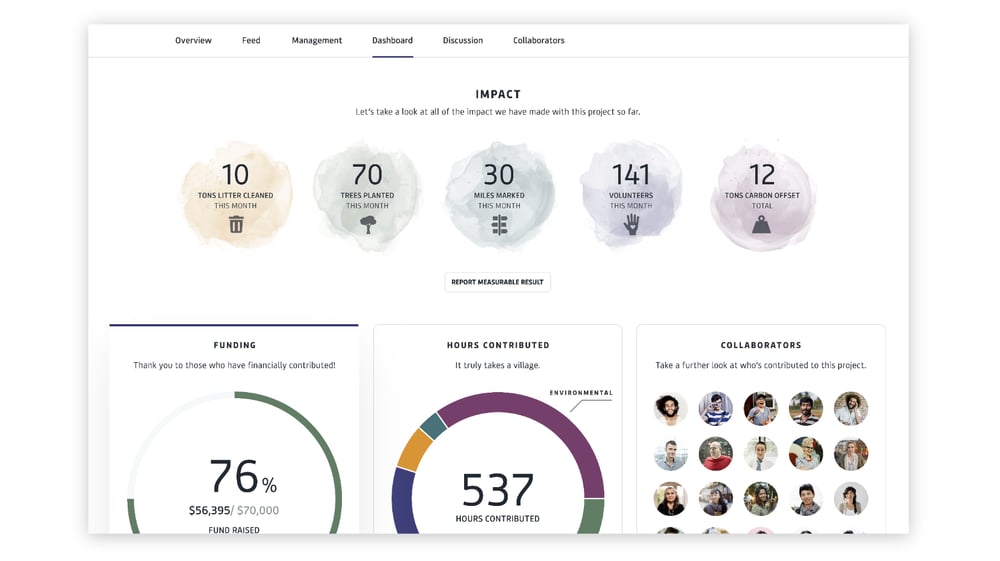
About
The dashboard tool allows users to create visual reports that draw from data collected across forms, workflows, and project activities. Dashboards can combine multiple types of content—including charts, tables, images, videos, and narrative text—to provide a comprehensive view of project progress and outcomes. Dashboards are created using a drag-and-drop interface that allows users to configure visualizations and organize information in ways that best reflect the needs of their program or audience. Data can be displayed in real time as new information is submitted through program workflows or field-level reporting. Dashboards can be created at the level of a single project or aggregated across multiple projects and sites, allowing organizations to analyze performance and outcomes across distributed initiatives. This flexibility supports a range of uses, from internal program monitoring to external reporting and impact storytelling. Key Features include:- Drag-and-Drop Interface: Easily arrange content modules for custom dashboard layouts.
- Multiple Data Sources: Connect live data (API, project data, web documents) or historical data (CSV, spreadsheets).
- Rich Content Modules: Images, videos, links, cards, image carousels, and more.
- Customizable Charts: Select from a wide range of chart types, including bar, line, funnel, pie, scatter, and radar charts.
- Flexible Layouts: Choose from various column configurations, text sections, and dividers for structured content presentation.
- Interactive & Shareable: Publish dashboards, share links, and embed content on external platforms
Quick Start
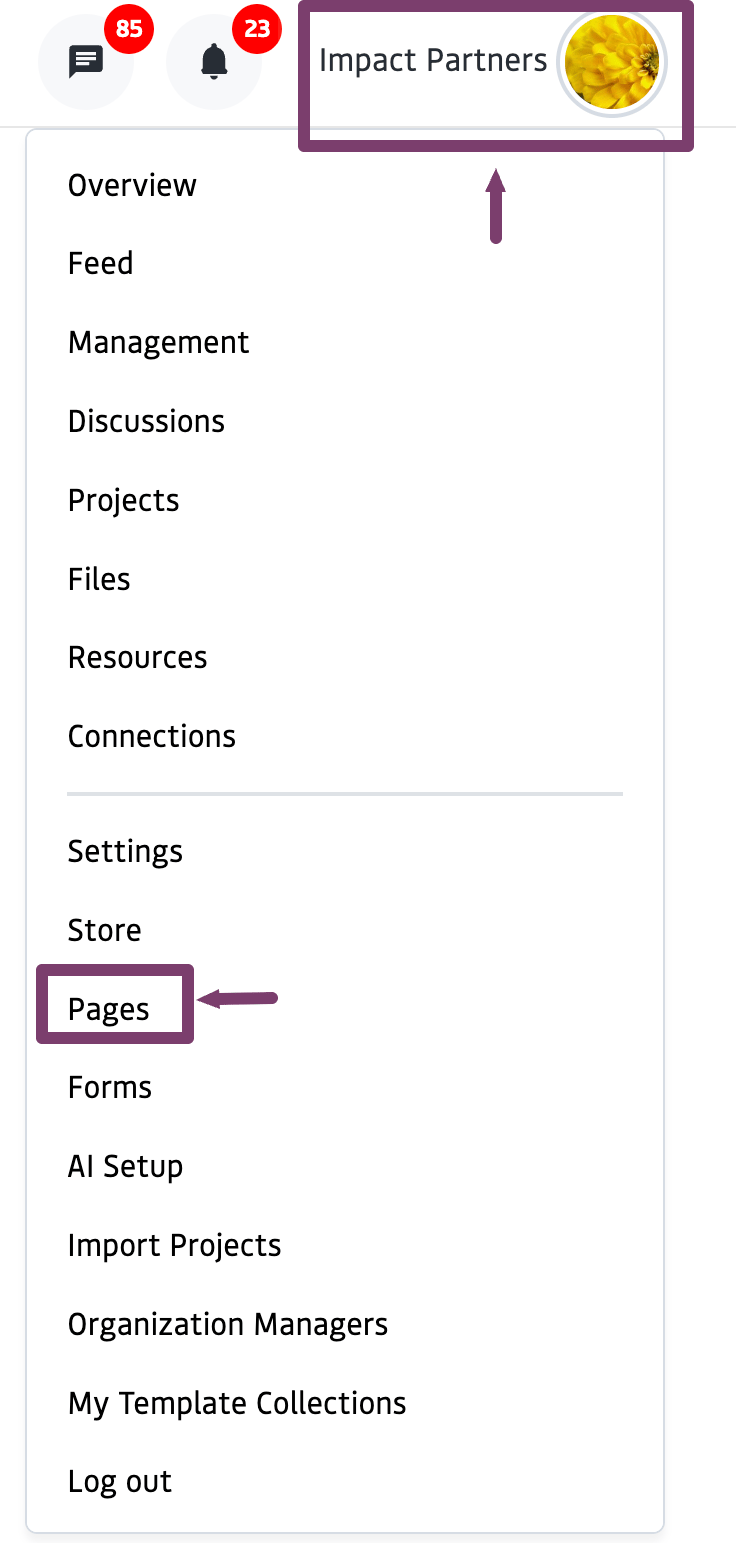
How to create a dashboardClick the Avatar in the top right corner to open the Menu and select "Pages".
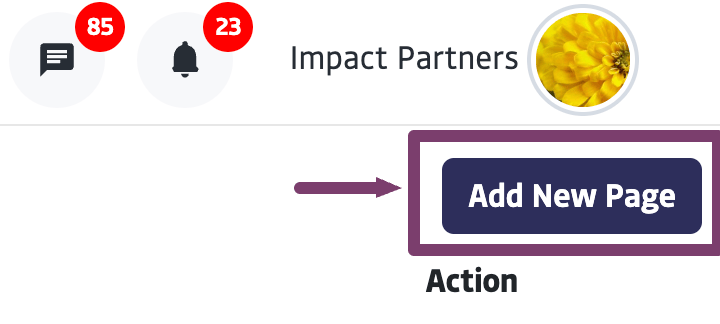
Select "Add New Page" and enter a Page Name.
Start creating by clicking + Add Block
Once finished, hit "Create Page" to publish.
- Once a page is saved, it will appear in the list when Pages is selected from the Menu.
- Click the gear icon to the right of the page title and name to edit or preview.
Working with Modules
The Dashboard Publishing Tool is built around modules, which are individual content blocks that users can add and configure. Each module serves a specific purpose, whether it’s displaying data, linking resources, or adding visuals.Creating a Layout
Connecting Modules to Data
Modules like Charts and Measurable Results require a data source to function. You can connect data in the following ways:- Live Data Sources: Pull real-time data from API integrations, project field data, or web documents stored in the system.
- Historical Data Sources: Upload CSV files, paste spreadsheet data, or manually enter historical data.
Connect to Project Data
Charts can connect to existing project data in the platform. You can source data from multiple projects.Choose ‘Fetch from Project List’ from the Data Source Method Menu and select an existing project.
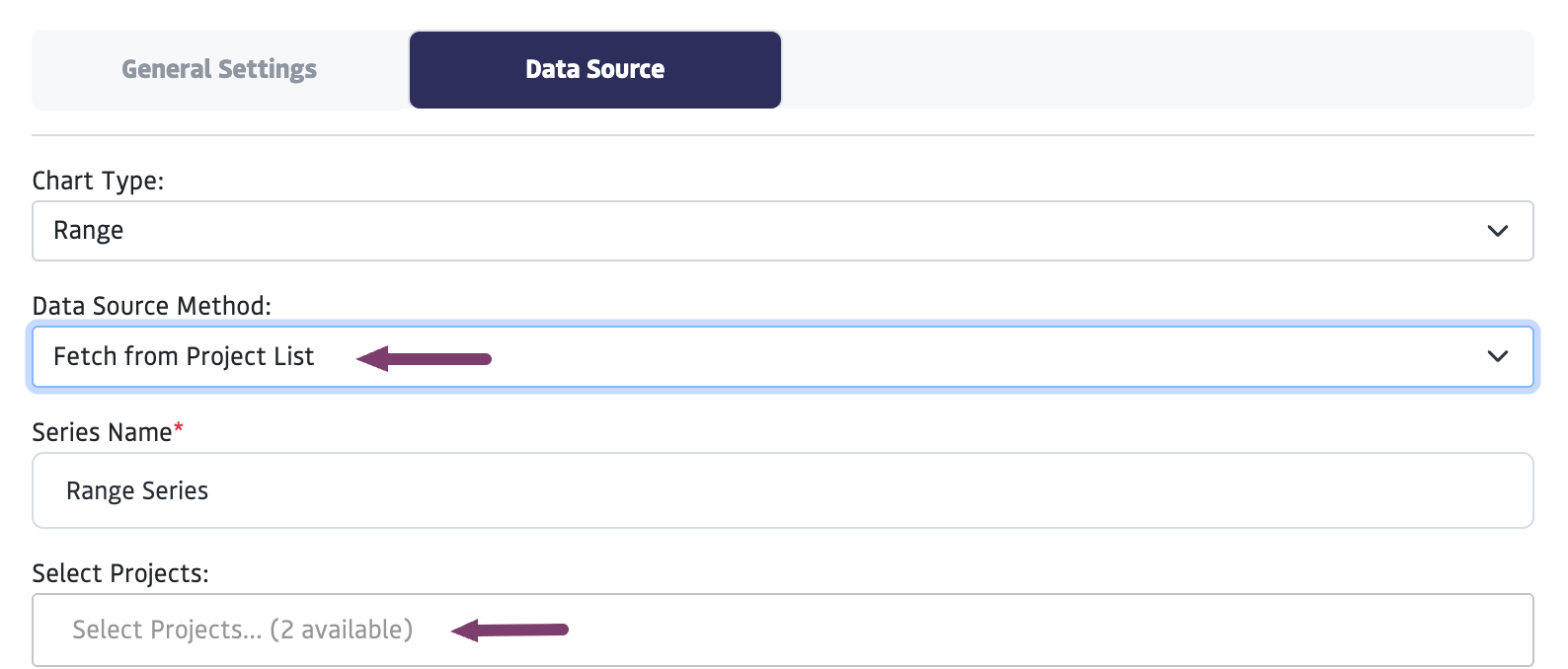
Select from the templates the form you would like to connect.
Select specific fields you would like to appear in your chart, through the field titled “data keys.”
Click "Generate Chart" and "Save"
Connect to Spreadsheet Data
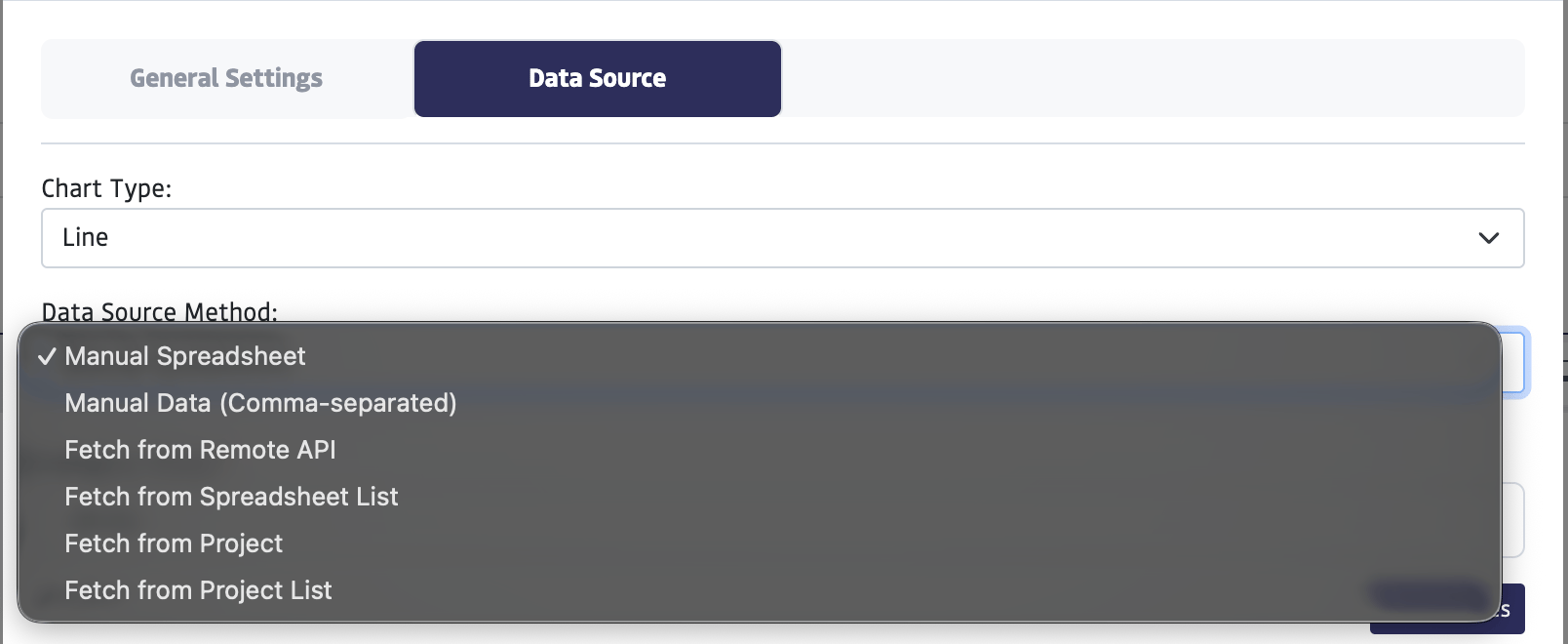
- For spreadsheets that you have created using the platform - in your files or under the attachment modal: Choose ‘Fetch from Spreadsheet List’ from the Data Source Method Menu and choose from previously uploaded Spreadsheets.
- To add data to a spreadsheet manually: Select ‘Manual Spreadsheet’ from the Data Source Method Menu and Enter data directly into the spreadsheet.
- To paste from CSV: Select ‘Manual Data (Comma-separated)’ from the Data Source Method and paste in data.
Connect to API
Choose ‘Fetch from Remote API’ from the Data Source Method Menu and enter the Remote URL. Please reach out to us directly at [email protected] if you are interested in exploring this option, and we can help you get it set up.Publishing and Sharing
Dashboard Privacy Settings
The privacy settings control where you are able to share the dashboard and who can see it. To add privacy settings to a Dashboard:Click on the gear icon at the bottom of the edit menu, this will open the privacy settings.
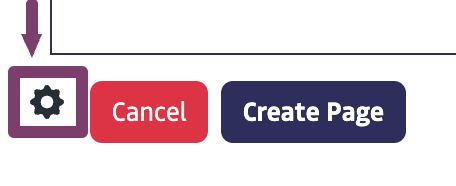
Under “Select Privacy”, select an option, and click “Add”
- Public – Allows the dashboard to be shared a link to view the dashboard, even if they are not logged into the platform
- Private – Prevents the dashboard from being shared publicly. Visibility is restricted only to you or your organization and the projects you share it to.
- Connections – The content is visible to all of your direct connections
- Custom – This allows for specific sharing rules, such as sharing with:
- All groups
- Specific groups
- Specific individuals
- With “allow” or “not allow” rules
Click “Update Page” to save changes.
Publish a Dashboard to a Project
This step allows you to display a dashboard within a specific project’s “Dashboard” tab. Follow these steps once you have created the dashboard.Go to the project you want to connect dashboard and navigate to the “Dashboard” tab.
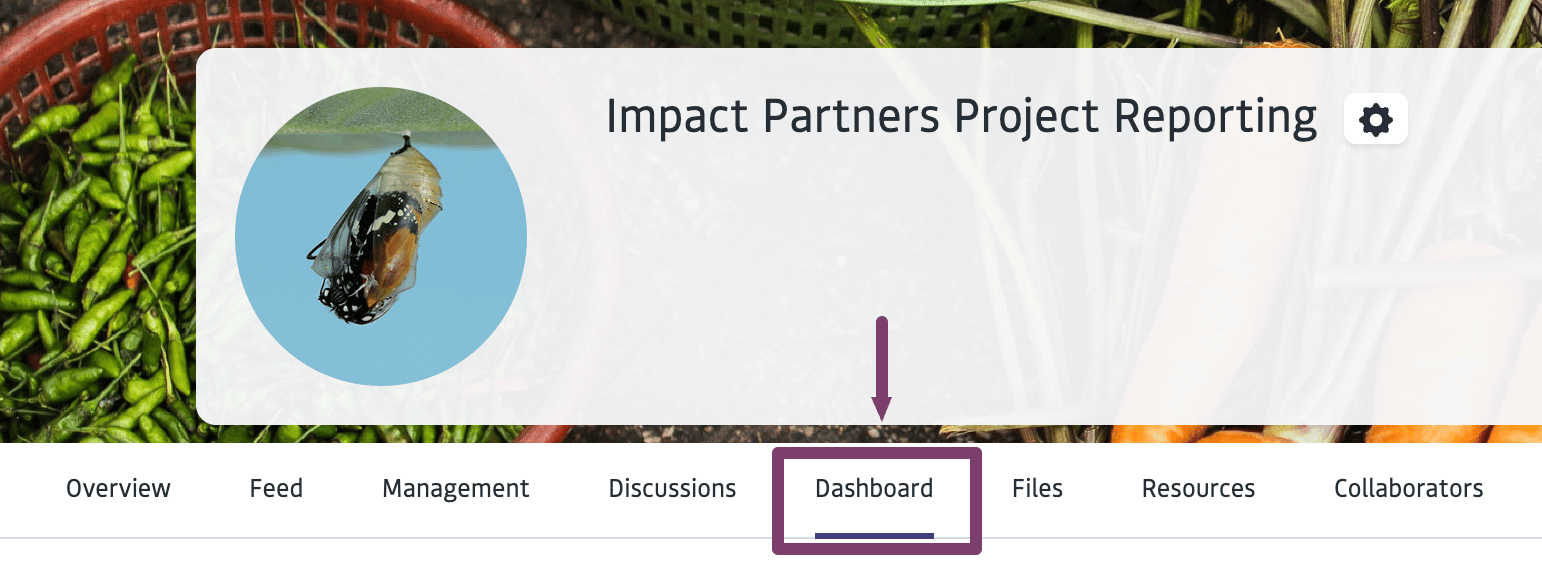
Select the page you would like to publish from the dropdown, then click "Edit Selected Page"
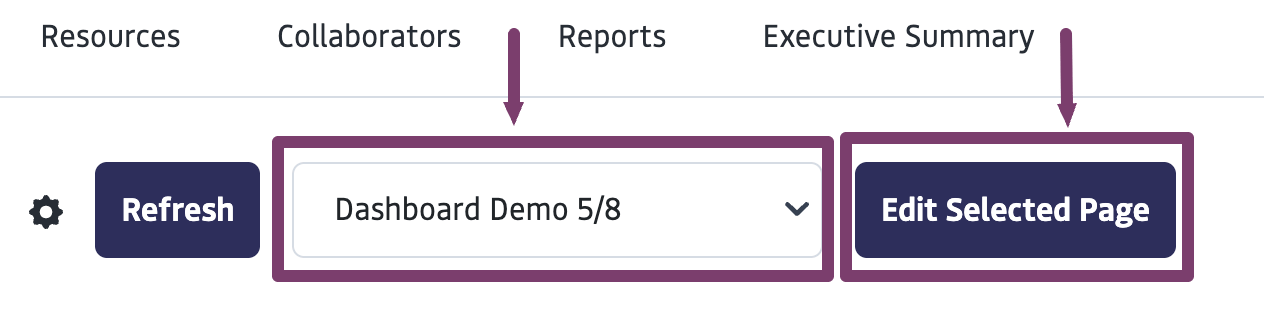
Open the dashboard in a new tab and click “Update Page”
Share a Dashboard URL
If the dashboard is set to public, you can share the page through a URL. To set the dashboard to public:Navigate to edit the dashboard
Scroll to the bottom of the dashboard. Click on the gear icon at the bottom the page, this will open the privacy settings.
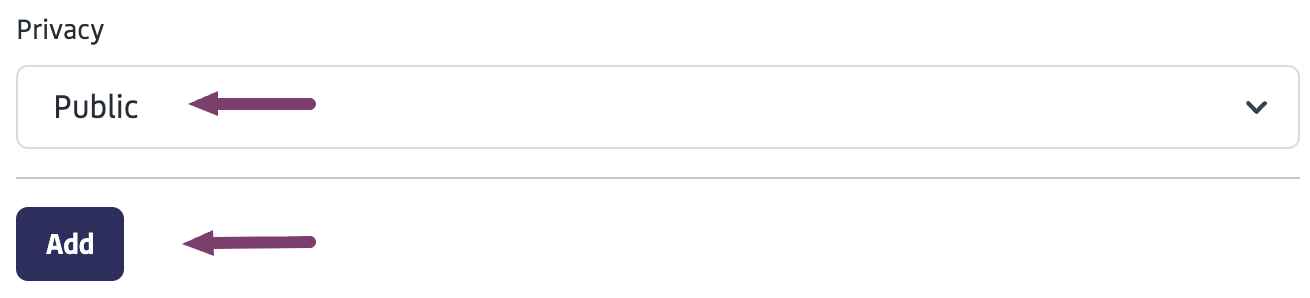
Under “Select Privacy”, click “Public”, then “Add”
Click “Update Page”