Filehero
The platform’s file management system lets you store, organize, and share files across your projects, groups, and organizational profile. Files serves as a central repository for all documents, images, and media uploaded to or shared within a specific area of the platform, such as a project, group, or profile. Files appear here after being attached to other objects, such as tasks, feed posts, or discussion threads. Users can see what has been shared across a collective space, ensuring that everyone with the proper permissions has access to the necessary documentation

Working with Files

Attaching Files: You can attach files to other objects, such as tasks, feed posts, or discussion threads. Within these objects, you can upload a new file or select from existing. Look for the attachment icon.

Attachment
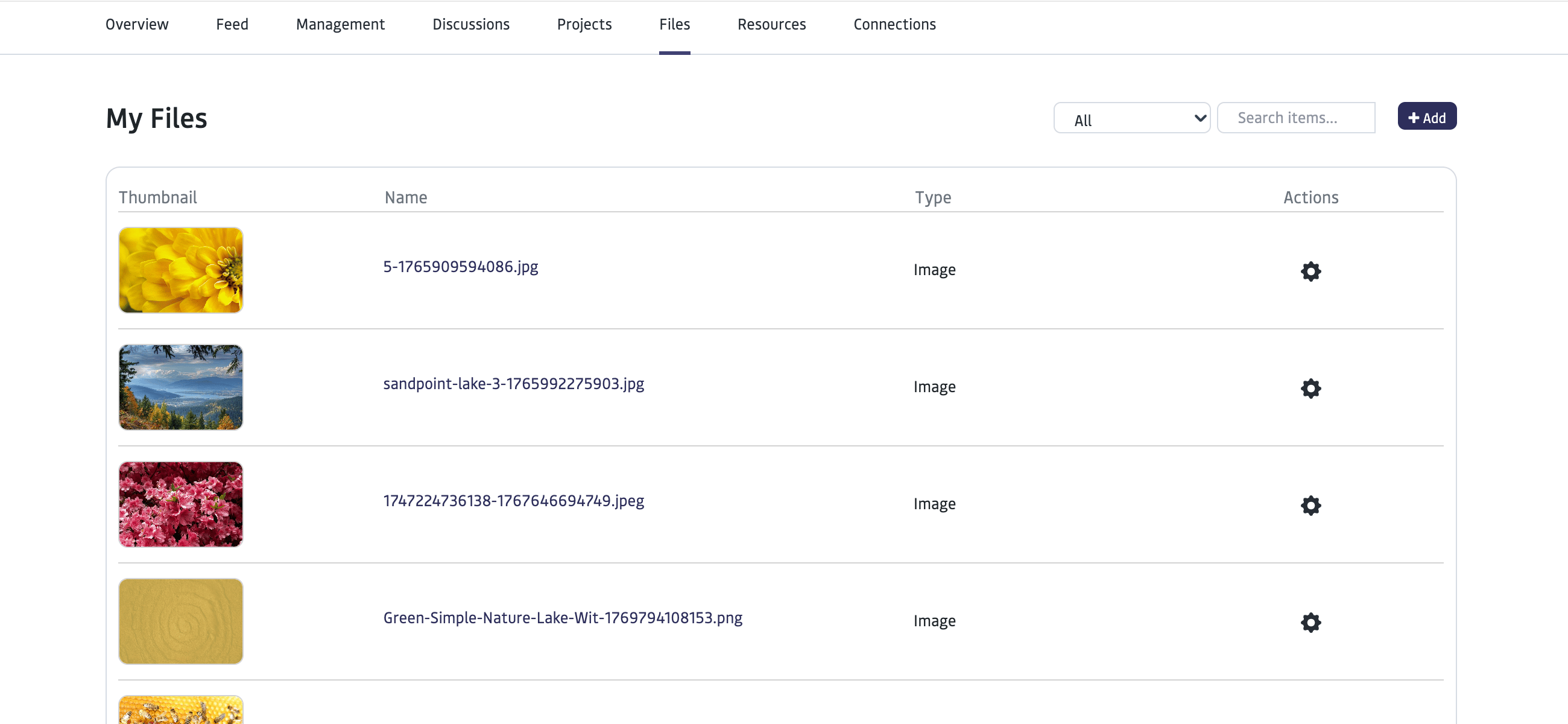
To Upload a New File You can upload a new file directly for later use through the Files of your own profile. Navigate to your individual profile, click on the File element, and select the “Add” button to upload a new file. _Note: The Files element in shared spaces, such as projects and groups are view only and show the files that have been uploaded for that space via objects like discussions and feed posts. _ Managing Files Next to the file name and type, select the gear icon to manage the file - download, preview, edit, privacy edits, or delete. Retroactive Privacy Changes Because a single file can be shared across multiple groups or posts, your individual profile’s Files is the place to retroactively change privacy settings or delete a file globally.

File Privacy and Visibility 

File visibility is determined by granular privacy settings.
  • Inherited Permissions: Files often inherit the permissions of their “container.” For example, if you upload an image to a post shared with a specific group, members of that group will see that image in their Files.
  • Fine-Tuning: Users can set files to Public (anyone with the link), Private (only the owner/organization), Connections, or Custom (specific individuals or groups).
Learn more about Privacy & Visibility →

FAQ