

Groups and Projects
In the top header of the platform, you will see “My Projects” and “My Groups”. Once you have joined a group or project, you will see them reflected when you click into those headings A group is a collaborative space for coordinating and communicating with members. Projects are for time-bound, task-focused, and measurable collaborative efforts.Groups
Groups on the Open Impact Platform serve as organized collaboration spaces that bring people together around a shared purpose or context. Designed to support both coordination and knowledge exchange, Groups create a structured environment where members can communicate, collaborate, and access shared resources.Joining a Group:
There are 3 ways you can join a Group:- If you were sent an invitation link to sign up for an account and join a Group, when you create your account, your request to join will be sent to the organization. Once it’s accepted you will receive a notification and see the Group in your “Groups”.
- If you already have a profile on Open Impact and have been invited directly to join a Group, you will get an email notification that guides you to “Click to Join”
- The third way is to search the “Community” area when logged in to your account, find a Group, open their profile, and select the “Join” button in the banner of the Group. The Group will then need to “accept” your request for you to join the Group. Once it’s accepted you will receive a notification and see the Group in your “Groups”.
Projects
Projects on the Open Impact Platform serve as structured environments for coordinating time-bound initiatives, collaborative workstreams, and measurable impact efforts. While Groups organize people around a shared context, Projects provide the operational layer where teams plan, implement, and track specific initiatives, deliverables, and outcomes.Joining a Project:
A manager of a Project sponsored by a Group that you are a member of can directly add you as a collaborator to a project. Read more about Projects →Platform Fundamentals
Common platform elements exist across the platform: within your own profile, organizational profiles, groups, and projects.Feeds
The “Feed” shows posts, calendar events, and collaborators associated with the Project or Group. For Projects the ‘Feed’ is also where collaborators engage in assigned tasks.You can view or rsvp to a calendar invitation, create a post to share with other members of the group or project or comment on posts from other members. Posts can include images and links. Read more about Feeds →
Files
The platform’s file management system lets you store, organize, and share files across your projects, groups, and organizational profile.Read more about Files →
Discussions
Discussions are used for ongoing topics of discussion within a group or project. You can comment on a discussion and search via tags or keywords.Read more about Discussions →
Resources and Resource Libraries
A resource is a curated container for knowledge - a bundle of one or more files (such as workshops, recordings, or toolkits) that share an overarching theme. You can view resources and publish your own. The Open Impact Resource Library is a curated, shared collection of practices, tools, and knowledge.Read more about Resources →
Calendar
The calendar shows events within a group or project. It can be used as a shared space to coordinate events and milestones. When viewing the calendar in your profile, you will see an aggregate of events from your groups and projects, and you can add your own events.Read more about Calendars →
Tasks
Tasks serve as a tool for collaborating on time-bound, measurable initiatives. Members can be assigned tasks by the managers of the projects they are a part of. Read more about tasks →
Connect with Other Members
You can grow your connections within the Open Impact community to network and collaborate. When you are connected with other members, you can see each other’s posts on your personal profiles, create private discussions with other members,1
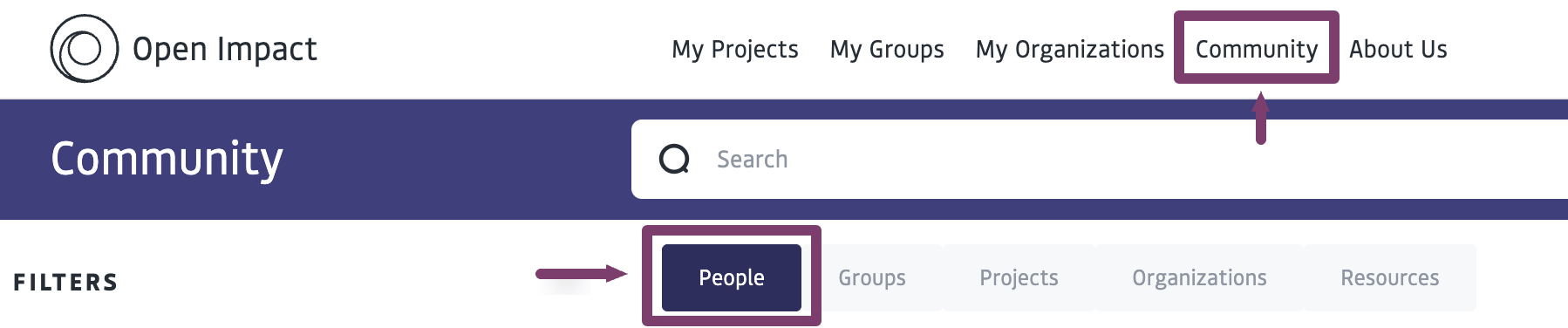
Click on “Community” → “People”
2
You can search by name, by skill, knowledge, or purpose tag, or by scrolling through the profiles to find other members.
3
To Connect
- Click “read more” on the profile
- Click “view member profile”
- In their profile banner image, click “Connect”
4
The member will need to accept this request to connect. Other members may also make requests to you, which you can accept or decline via your notifications bell.